
Add SplitMe to your Home Screen
Open SplitMe with one tap from your phone, without an app store download. An internet connection is still needed.
Choose your browser and phone
Choose the browser you use on your phone. On a computer, follow these steps on your phone instead.
First open the SplitMe home page or the group you want to keep in the chosen browser. Then follow these steps on that page.
Open SplitMeSafari · iPhone / iPad
Illustrated examples, not screenshots. Menu labels and positions may vary by browser version and phone language.
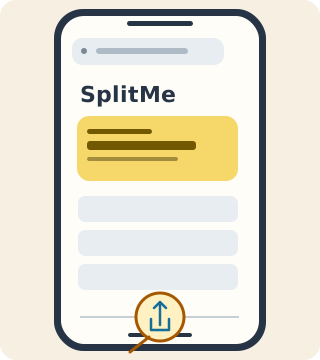
1.Open Share
Tap the Share button (a square with an upward arrow). Depending on your Safari layout, it may be in the toolbar or under the menu.
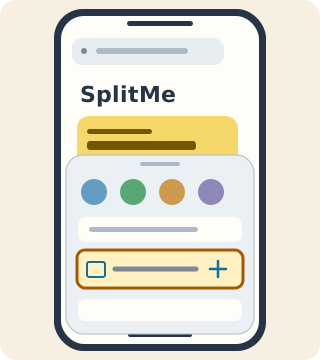
2.Add to Home Screen
Scroll down in the share sheet and tap Add to Home Screen. If shown, keep Open as Web App enabled.
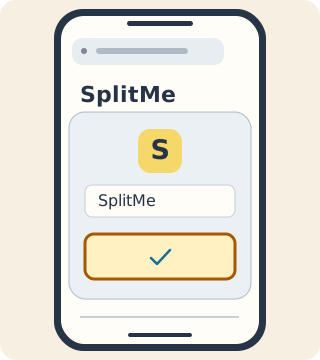
3.Confirm and open SplitMe
Keep or edit the name SplitMe, then tap Add or Install and confirm any further prompt. Open the new SplitMe icon from your Home Screen.
If an option is missing, scroll through the menu or share sheet and update your browser. On iPhone, try Safari. In a chat app’s browser, open the page in your phone’s full browser first.